

Document conversion is the process of changing a file from one document format into another while preserving as much usable content, structure, and appearance as possible. A DOCX file may become a PDF, a PDF may become editable text, or a presentation may be exported as a series of images. The important detail is that conversion is not merely changing a filename extension: it requires software to interpret the source file and create a new representation under the rules of the destination format.
Table of Contents
- What Document Conversion actually changes
- Why the destination format matters
- How a browser-based conversion works
- Where Document Conversion breaks
- How practitioners choose and verify a workflow
- A specific recommendation for reliable Document Conversion
That distinction matters to students submitting assignments, office workers sharing documents with clients, designers preparing print-ready files, and privacy-conscious people who do not want an everyday file uploaded unnecessarily. A successful conversion must satisfy the job, not just produce a file that opens. It should preserve the right content, use an appropriate output format, and avoid introducing an unacceptable privacy or quality trade-off.
What Document Conversion actually changes
A document is usually a package of several layers rather than a flat page. It may contain text, fonts, paragraph styles, tables, images, hyperlinks, comments, metadata, page dimensions, headers, footers, formulas, and accessibility information. The source format stores those elements using its own rules. The destination format may support them differently—or not support them at all.
Containers, instructions, and rendered pages
Office formats such as DOCX generally describe document structure: paragraphs, runs of text, styles, tables, and relationships between embedded resources. A PDF, by contrast, is designed primarily to describe pages and their visual output. That makes a DOCX-to-PDF conversion relatively natural when the source has been laid out correctly, but it makes PDF-to-DOCX conversion more inferential. The converter has to guess which visible words belong to the same paragraph, whether a line is a heading, and whether a group of positioned elements is a table.
Format conversion is a mapping problem. The closer the source and destination models are, the more structure can survive. When the models differ sharply, the output may retain the appearance while losing editability, or retain the words while losing layout.
- DOCX to PDF: Usually prioritizes stable page appearance, useful for submitting or distributing a finished document.
- PDF to DOCX: Attempts to recover editable structure from a fixed page description, so complex columns and tables may need review.
- ODT to DOCX: Maps between two editable word-processing models, but styles, tracked changes, and unusual objects can behave differently.
- DOCX to TXT: Keeps plain text but discards most visual structure, images, tables, and formatting.
- PPTX to PDF: Preserves slide geometry more reliably than converting slides into an editable word-processing document.
- PDF to PNG: Produces page images rather than editable text; it is useful for visual sharing but not for searching or rewriting.
The extension is only a clue. A file named report.pdf could contain selectable text, scanned page images, or a mixture of both. A file named report.docx could contain ordinary text or pages made almost entirely from screenshots. Before choosing a converter, identify what the file actually contains and what the next person needs to do with it.
Conversion, export, and extraction are different jobs
Exporting usually means creating a destination file from an application’s internal document model. A word processor can export its own document to PDF because it already knows the paragraphs, styles, and page breaks. Extraction means pulling content out of a file, such as copying text from a PDF or recovering images from a presentation. Conversion is the broader term for creating a usable file in another format, whether the process is direct export, structural reconstruction, or rendering.
These distinctions produce different expectations:
- Choose export when the original editing application is available and visual fidelity is the priority.
- Choose structural conversion when the recipient must revise text, tables, or headings.
- Choose extraction when you need a small part of a file rather than a complete replacement.
- Choose rendering when the output only needs to look right and editability is not required.
- Choose plain-text conversion when portability and searchability matter more than layout.
Why the destination format matters
The best output format is determined by the next action. Sending a contract for signature, submitting an essay, archiving a report, importing text into a database, and editing a shared proposal are different jobs. Treating “convert this file” as a complete specification is how people end up with a technically valid file that fails in practice.
| Job | Useful destination | Main trade-off |
|---|---|---|
| Distribute a finished layout | Stable appearance, less convenient editing | |
| Continue editing paragraphs and styles | DOCX or ODT | Layout may vary between applications |
| Move text into another system | TXT or HTML | Formatting and page geometry may disappear |
| Preserve a page as a visual asset | PNG or JPEG | No practical text editing; resolution matters |
| Share tabular data for processing | CSV | Formatting, formulas, and multiple sheets are not preserved |
| Keep a source document editable across open-source tools | ODT | Some proprietary layout features may not map cleanly |
Google’s official documentation illustrates this output-oriented approach: Google Docs allows users to download a document in different file types, including Microsoft Word and PDF, from the document interface. The available destination changes what the resulting file is suited for, so the choice should be made based on the recipient’s workflow rather than the source extension alone. See Google’s official instructions for downloading Google Docs files.
PDF is fixed-looking, not necessarily fixed in origin
PDF is often selected because recipients need to see consistent pages. That is valuable for invoices, resumes, print proofs, application forms, and finalized reports. However, a PDF can be generated from selectable text, vector objects, raster images, or combinations of all three. Two PDFs that look identical on screen can have very different conversion prospects.
Searchable text is not the same as editable structure. A PDF may let you select a paragraph while still lacking the original heading hierarchy, table relationships, or reading order. A scanned page may have no text layer at all. Optical character recognition can create one, but recognition introduces its own errors, especially with low contrast, unusual typefaces, columns, handwriting, and skewed pages.
For a document that will be edited repeatedly, keep the original editable source whenever possible. Convert that source to PDF for distribution, and do not treat the PDF as the only master copy unless the loss of editability is intentional.
Compatibility has two directions
People often ask whether a file format is “supported,” but support has at least two meanings:
- Opening support: Can the application display the file at all?
- Editing support: Can the application change its structure without damaging it?
- Rendering support: Does it display the same way on another device?
- Round-trip support: Can the file be converted out and back without accumulating visible changes?
- Feature support: Are comments, fields, formulas, links, fonts, and accessibility data retained?
A recipient may be able to open a DOCX but still lose a custom font, a complex table, or a tracked-change history. Conversely, a PDF may render consistently while becoming difficult to revise. Ask which properties are negotiable before converting: appearance, editability, file size, searchability, accessibility, or metadata.
How a browser-based conversion works
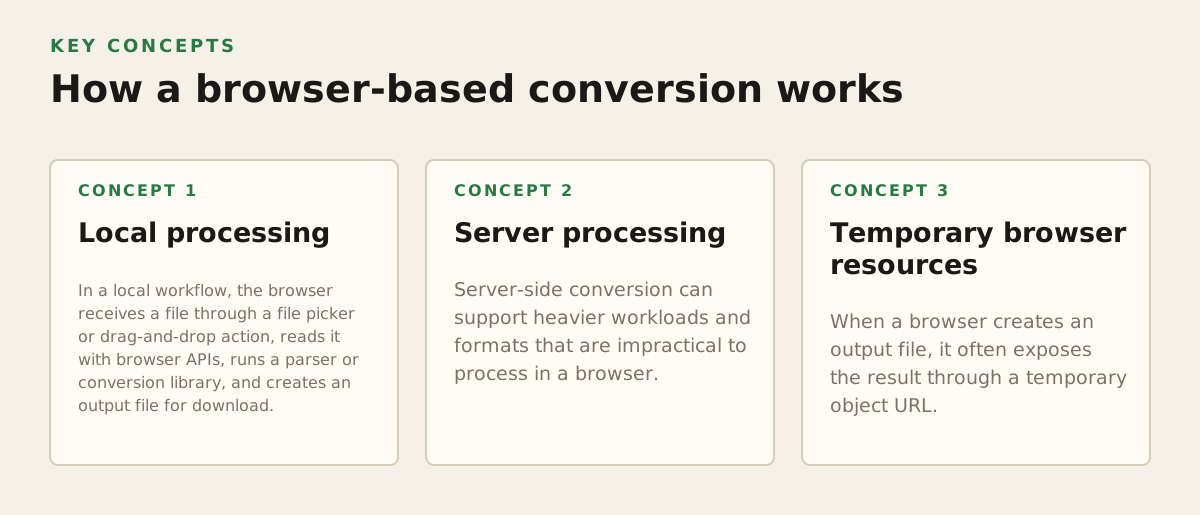
A browser-based tool can process a document in several ways. The browser may read the file locally and run conversion code on the device, or the file may be sent to a server that performs the conversion and returns a result. Some products use different paths for different formats. That distinction is central to privacy, speed, and the kinds of documents a tool can handle.
Local processing
In a local workflow, the browser receives a file through a file picker or drag-and-drop action, reads it with browser APIs, runs a parser or conversion library, and creates an output file for download. The MDN documentation for the File API describes the browser interfaces used to work with files selected by a user. The file can remain on the device while the conversion takes place, although a website’s exact implementation and permissions still matter.
A common local sequence looks like this:
- The user selects a source file.
- The browser exposes the selected file to the page through a temporary file object.
- A parser reads the container and identifies text, images, styles, or page data.
- A conversion library builds the destination representation.
- The browser creates a downloadable output and releases temporary resources.
Local processing reduces upload exposure, but it does not automatically guarantee perfect privacy. A page can still load third-party scripts, request analytics data, or offer a separate server-powered feature. Privacy-conscious users should inspect the tool’s stated processing model and avoid assuming that every button on a site uses the same path.
Server processing
Server-side conversion can support heavier workloads and formats that are impractical to process in a browser. The general flow is different: the browser uploads the source, a server places it in a processing environment, a conversion engine creates the output, and the result is sent back. This can be useful for large or complicated files, but it introduces a transfer and retention question.
Before uploading confidential material, check:
- Whether the file leaves the device at all.
- How long uploaded and converted files are retained.
- Whether deletion is automatic or requires an account action.
- Whether the service clearly separates temporary processing from storage.
- Whether the document contains regulated, contractual, personal, or proprietary information.
There is no universal rule that local is always better or server processing is always wrong. A local browser conversion may be the sensible choice for a private résumé or class assignment. A server workflow may be practical for a large video or a complex conversion that the browser cannot complete. The decision should match the sensitivity of the file and the required capability.
Temporary browser resources
When a browser creates an output file, it often exposes the result through a temporary object URL. The MDN reference for URL.createObjectURL() explains that object URLs can represent in-memory or local resources for use by a page. Well-designed tools release those temporary references when they are no longer needed, while users should still close the page or clear downloaded files when working on a shared computer.
Browser limits also influence the experience. Available memory, device power, file size, and the complexity of the document all affect whether local processing is comfortable. A document containing thousands of embedded images is a different workload from a two-page text file, even if both have the same extension.
Where Document Conversion breaks
Conversion failures are rarely random. They usually come from a mismatch between the source’s features and the destination’s model, missing fonts or resources, ambiguous page structure, or an output that was never inspected. The extension may remain correct while the content becomes subtly wrong.
Layout drift
Page layout depends on font metrics, line wrapping, margins, paper size, paragraph spacing, and the position of floating objects. If a destination system substitutes a font or calculates line breaks differently, a heading can move to the next page, a table can expand, or a footer can overlap body text.
Visual fidelity is a separate acceptance test. Open the output and inspect page breaks rather than assuming that a successful download means a successful conversion. For a short document, compare every page. For a long document, inspect the cover, table of contents, pages with tables, pages with images, and the final page.
Tables, columns, and positioned objects
Tables are especially difficult when converting from a fixed page into an editable format. A PDF may store each word at a coordinate without storing a semantic table. A converter must infer rows, columns, merged cells, and reading order. Multi-column newsletters create a similar problem: the visually obvious reading order may not be explicit in the source.
Watch for these symptoms:
- Cells become separate paragraphs or lose their borders.
- Numbers move into the wrong column.
- Text from two columns is interleaved.
- Captions become body text or disappear.
- Headers and footers are inserted into the middle of paragraphs.
- Text boxes shift independently from the surrounding content.
If the destination is meant for data analysis, a spreadsheet or structured table may be more appropriate than DOCX. If the destination is meant for visual distribution, retaining a PDF may be safer than forcing a complex page into an editable format.
Fonts, images, and transparency
A document can refer to a font without embedding it. If that font is unavailable during conversion, the replacement may have different character widths and produce new line breaks. Images can also change through downsampling, recompression, color-profile handling, or transparency flattening. These effects may be invisible in a quick text check but obvious in print or on a high-resolution display.
For visual work, record the source image dimensions and the intended use before converting. A small raster image may look acceptable in a browser but become soft when placed on a printed page. A screenshot of a page may preserve appearance while making text inaccessible to search, screen readers, and copy-and-paste workflows.
OCR and text recognition errors
Scanned documents need a recognition stage before they can become genuinely editable. OCR may confuse “0” and “O,” drop punctuation, join words, or misread columns. It can also produce a document that looks reasonable while containing incorrect names, dates, account numbers, or totals.
Never trust OCR for critical values without comparison. For invoices, legal records, identification documents, medical paperwork, and financial tables, compare the converted text against the page image. A practical review can focus first on dates, amounts, names, reference numbers, and negative signs—the fields where a single character can change the meaning.
Metadata and hidden content
Conversion may preserve or create metadata such as author names, revision information, application identifiers, comments, hyperlinks, and document properties. It may also omit tracked changes or expose content that was visually hidden in the source. Removing visible text is not always the same as removing the underlying data.
Before sharing a converted file, inspect:
- Comments and tracked revisions.
- Hidden rows, columns, slides, or text.
- Author and organization properties.
- Embedded files and external links.
- Headers, footers, and document navigation fields.
- Redactions, especially where black shapes may merely cover text.
A conversion tool is not automatically a redaction tool. If sensitive content must be removed, use a workflow designed to remove or flatten it and then verify that copying, searching, and object inspection cannot recover the original information.
How practitioners choose and verify a workflow
Experienced users start with the deliverable, not the converter. They define what the recipient needs, identify what must survive, and choose the least complicated path that meets those requirements. This avoids spending time repairing a conversion that should never have been attempted in that direction.
Use a decision sequence
- Identify the source reality: Is it editable text, a scan, a page image, a structured table, or a mixed document?
- Define the recipient’s action: Will they read, print, edit, search, extract, sign, archive, or import the file?
- Choose the destination model: Fixed pages, editable paragraphs, plain text, structured data, or images.
- Set the privacy boundary: Decide whether the file may leave the device before selecting a local or server workflow.
- Convert a representative sample: Include the hardest page, not only a simple first page.
- Inspect the output: Check content, layout, links, images, tables, metadata, and accessibility-relevant structure.
- Keep the original: Preserve the source until the recipient accepts the converted result.
A representative sample is more informative than a routine page. For a 40-page report, use a sample containing a table, a figure, a footnote, a section break, and the most complicated layout. For a scanned archive, sample pages with stamps, handwriting, skew, and low contrast. For a résumé, inspect the page breaks and text selection because both visual appearance and machine readability may matter.
Use explicit acceptance checks
A conversion is ready when it passes checks tied to the job. “The file opened” is not enough. A student submitting an assignment should verify page count, citations, equations, and required headings. An office worker sending a client proposal should check names, prices, links, and signature areas. A designer should inspect image sharpness, dimensions, color handling, and bleed or page geometry where relevant.
- Content check: Are all pages, paragraphs, images, and tables present?
- Meaning check: Did numbers, dates, names, formulas, and symbols remain correct?
- Visual check: Are page breaks, alignment, fonts, and images acceptable?
- Interaction check: Do links, fields, comments, and selectable text behave as expected?
- Privacy check: Is unwanted metadata or hidden content absent?
- Recipient check: Can the intended application open and use the output?
Illustrative workflows for common users
The following are starting policies, not universal benchmarks. Adjust them for the sensitivity of the file and the recipient’s requirements.
- Student essay: Keep the editable source, export a PDF for submission if the instructor requests stable pagination, then reopen the PDF and verify citations, page numbers, and line breaks.
- Office report: Keep a DOCX or ODT master, create a PDF for distribution, and inspect tables, hyperlinks, headers, and tracked changes before sending.
- Scanned form: Run OCR only if editing or searching is necessary, compare every critical field with the scan, and retain the original image-based file.
- Designer’s proof: Use a page-preserving destination for review, inspect image resolution and font substitution, and do not replace a print-production workflow with a generic converter without checking specifications.
- Data handoff: Convert a simple table to CSV only when one sheet of plain values is sufficient; preserve the original spreadsheet if formulas, multiple sheets, formatting, or comments matter.
For local browser tools, a sensible policy is to use them for ordinary documents when keeping the source on the device is important and the file size and format are manageable. OMNIVERT’s stated model fits that use case for images, audio, and documents: those categories are processed locally in the browser, while video conversion uses separate server processing for users who need faster, signup-free video work. The practical choice is therefore format-specific rather than based on a blanket claim that every conversion follows one route.
A specific recommendation for reliable Document Conversion
Use the original application’s export function when it is available and the source document is still editable. It has the best chance of understanding styles, page breaks, fonts, and embedded objects. Use a dedicated converter when the original application is unavailable, when you need a different destination format, or when you need a repeatable browser-based workflow. For confidential everyday documents, prefer a clearly local process; for complex or unusually large jobs, weigh the capability of server processing against the consequences of uploading.
Keep the source, choose the destination by job, and verify the output by content and appearance. That three-part discipline prevents the most expensive mistakes: delivering a beautiful file with incorrect numbers, an editable file with broken layout, or a private document uploaded to a service that was never appropriate for it.
When you need a straightforward browser workflow for everyday files, OMNIVERT can help you convert documents locally without installing desktop software. Use it as one step in a checked process: convert, open the result, and confirm that it meets the recipient’s actual requirements.
Authored with NotFair SEO