

A free video file converter changes a video’s container, codec, resolution, audio track, or combination of these without requiring desktop software. For a quick browser workflow, upload the source, choose a format such as MP4 or WebM, set quality if the tool offers it, and download the result. The important caveat is that video conversion is usually more demanding than image, audio, or document conversion: many browser tools send video to a separate server for processing, so check the privacy policy and keep the original file until you have verified the output.
Table of Contents
- What a video file converter actually changes
- Why the destination matters more than the source
- How browser-based video conversion works
- Where free video converters break down
- How practitioners use a free converter without wasting quality
What a video file converter actually changes
“Convert this video to MP4” sounds like one operation, but a video file has several layers. The container is the file wrapper, such as MP4, MOV, WebM, or MKV. Inside it are one or more streams: usually a video stream, an audio stream, subtitles, and sometimes metadata or thumbnails. The codec compresses each stream. H.264, H.265/HEVC, VP9, and AV1 are video codecs; AAC, Opus, and MP3 are common audio codecs.
Changing only the container can be relatively quick because the compressed streams may be copied into a different wrapper. Re-encoding is different: the converter decodes the source and compresses it again using new settings. That is what normally happens when the destination requires a different codec, smaller dimensions, a lower bitrate, or a different frame rate. Re-encoding can reduce compatibility or quality, but it can also make a file small enough to upload or play on a target device.
Container versus codec
A file ending in .mp4 is not automatically an H.264 video. MP4 is a container that can hold different video and audio streams. The same principle applies to MOV and MKV. A player may support the container but fail on the codec inside it, or support the codec but not a particular audio format, subtitle track, or profile.
FFmpeg’s official documentation separates formats from codecs for this reason: formats describe how media is packaged, while codecs describe how audio and video are encoded. Its format documentation is useful when a technical workflow needs to distinguish a container problem from an encoding problem: FFmpeg formats documentation and FFmpeg codecs documentation.
Transcoding, remuxing, and compression
Remuxing moves existing streams into another container without changing the compressed video. It is fast and does not normally introduce another generation of quality loss, but it cannot solve an unsupported codec. Transcoding converts the streams into new codecs or settings and takes more processing time. Compression usually means reducing bitrate, resolution, frame rate, or image complexity to reduce file size.
- A 1920×1080 H.264 video in an MP4 container may be remuxed to another compatible container without changing its pixels.
- A 3840×2160 HEVC recording may need transcoding to 1920×1080 H.264 for a broader playback audience.
- A 500 MB conference recording may be compressed to a smaller file by lowering resolution or bitrate, but fine text and fast motion may become less clear.
- A video with a 48 kHz AAC audio track may be converted to another audio codec while leaving the video stream unchanged only if the chosen tool supports stream selection and compatible output packaging.
Why the destination matters more than the source
The right output is determined by where the file will go. A phone, editing application, social platform, learning-management system, website, and archive may each accept different combinations of containers, codecs, dimensions, frame rates, and file sizes. Choosing “highest quality” without identifying the destination often creates a file that is unnecessarily large or still fails to upload.
Start with the destination’s published requirements when they exist. For example, Google’s official YouTube help explains recommended upload encoding settings, including container, video codec, frame rate, and audio considerations: YouTube recommended upload encoding settings. Google Ads also publishes separate technical requirements for video advertising, which illustrates why a file suitable for ordinary playback may not meet an advertising upload rule: Google Ads video requirements.
Choose compatibility, quality, or size first
These goals overlap, but they are not identical. A broadly compatible output usually favors a common container and codec. A small output favors efficient compression. An editing master favors preserving detail and avoiding unnecessary re-encoding. Decide which cost matters most before opening the converter.
- For general playback: use MP4 with H.264 video and AAC audio when the destination does not provide a more specific requirement.
- For modern web delivery: consider WebM with VP9 or AV1 when the receiving player explicitly supports it; do not assume every editing app or older device will.
- For a web upload limit: keep the original dimensions if possible, then reduce bitrate or resolution in measured steps until the file fits.
- For editing: preserve the highest-quality original and use a production-approved intermediate format rather than repeatedly converting a delivery file.
- For an archive: retain the camera original or master file; a smaller delivery copy is not a substitute for the source.
As an illustrative starting policy, a creator exporting a five-minute 1080p tutorial might keep one high-quality master, make one broadly compatible MP4 for clients, and make one smaller copy for messaging. Those are three different jobs, not evidence that one setting is universally best. Text-heavy screen recordings deserve special care because aggressive compression can turn small letters into blocks even when moving footage still looks acceptable.
How browser-based video conversion works
A browser-based converter normally has four stages: file selection, upload or local processing, decoding and encoding, and result delivery. The first stage is simple, but the processing location determines privacy, speed, and what formats are practical.
Local processing versus server processing
Images, audio, and documents can often be handled inside the browser using JavaScript, WebAssembly, or browser APIs. Video conversion is more variable because decoding and encoding can be computationally expensive, browser support differs, and large files put pressure on memory and battery. A web tool may therefore process video on a server after upload rather than attempting the complete job on the device.
Browser recording APIs demonstrate the distinction between capturing media in a browser and converting arbitrary existing media. The MDN documentation for the MediaRecorder API describes recording media streams into browser-supported formats; that does not mean every browser can decode every uploaded camera file or export it to every requested codec.
OMNIVERT processes images, audio, and documents locally in the browser, while its video conversion uses separate server processing for people who need a fast, signup-free conversion. That division is practical: video users get a dedicated conversion path, but they should treat an upload as a server-processed task and review the site’s current handling and retention information before submitting sensitive footage.
What happens to quality during encoding
Most common delivery codecs use lossy compression. The encoder discards information that it predicts will be less noticeable, then stores the remaining signal efficiently. Bitrate, resolution, frame rate, codec profile, and scene complexity all affect the result. A static interview can compress more efficiently than confetti, tree leaves, smoke, or a fast sports scene at the same nominal settings.
Repeated lossy conversion compounds damage. If a camera file is converted to a small MP4, edited, exported again, and then converted for a platform, each re-encoding can soften detail or produce blockiness. Work from the original whenever possible. If you must make multiple versions, generate them from the best available source rather than converting one delivery copy into the next.
Audio needs its own check. A video can look correct while the soundtrack is missing, too quiet, delayed, or converted to an unsuitable channel layout. After every conversion, inspect the first minute, a section with speech, and the final minute. For music or dialogue work, listen with headphones as well as checking the picture.
- Confirm that the output opens in the player or application used by the recipient.
- Check the first, middle, and last sections for frozen frames, missing audio, or synchronization drift.
- Compare the output dimensions and duration with the source.
- Look at small text, faces, shadows, and fast motion rather than judging only a static thumbnail.
- Keep the source until the recipient or destination accepts the converted file.
Where free video converters break down
A free converter can be useful without being universal. The main failure points are not mysterious: unsupported codecs, upload limits, processing time, server retention, and settings that hide important trade-offs.
Compatibility and metadata failures
A converter may accept a file extension but reject its internal stream. A phone recording can contain variable frame rate, HDR metadata, rotation information, multiple audio tracks, or an unusual color profile. The output may play correctly in one application and appear sideways, washed out, silent, or stuttery in another.
HDR-to-SDR conversion is especially easy to misunderstand. If the output device or platform expects standard dynamic range, simply changing the extension will not perform the required tone mapping. Colors may look dull or highlights may clip. Likewise, changing a vertical video from 1080×1920 to 1920×1080 by altering metadata can produce incorrect orientation rather than a properly rotated and encoded result.
Privacy, uploads, and operational limits
When a video leaves your device, the privacy question is not only whether the connection is encrypted. Ask where processing occurs, how long uploads and outputs remain available, whether files are used for other purposes, and how deletion works. Policies can change, so read the current service terms for the specific tool and date your decision in regulated or confidential workflows.
Do not upload unreleased client footage, medical recordings, private family videos, or confidential workplace material to an unknown service merely because the converter is free. For sensitive material, an offline application with a documented workflow may be more appropriate. For ordinary public or non-sensitive clips, a browser tool can remove installation and maintenance work.
- File size: a large 4K source may fail before encoding begins because of upload or service limits.
- Time: upload duration depends on the file size and connection; encoding adds a separate queue and processing stage.
- Device continuity: closing a tab or losing a mobile connection may interrupt a browser workflow.
- Feature depth: a simple converter may not offer trimming, subtitle burning, HDR handling, audio normalization, or batch controls.
- Output certainty: a successful download does not prove that the file meets the destination’s technical rules.
When a conversion fails, avoid random format-hopping. First identify whether the problem is upload, decoding, encoding, or playback. Try opening the source in another player, inspect its actual codec and dimensions, and test a short copy if the tool supports one. If the short copy works but the full file does not, size, duration, variable frame rate, or a damaged section may be involved.
How practitioners use a free converter without wasting quality
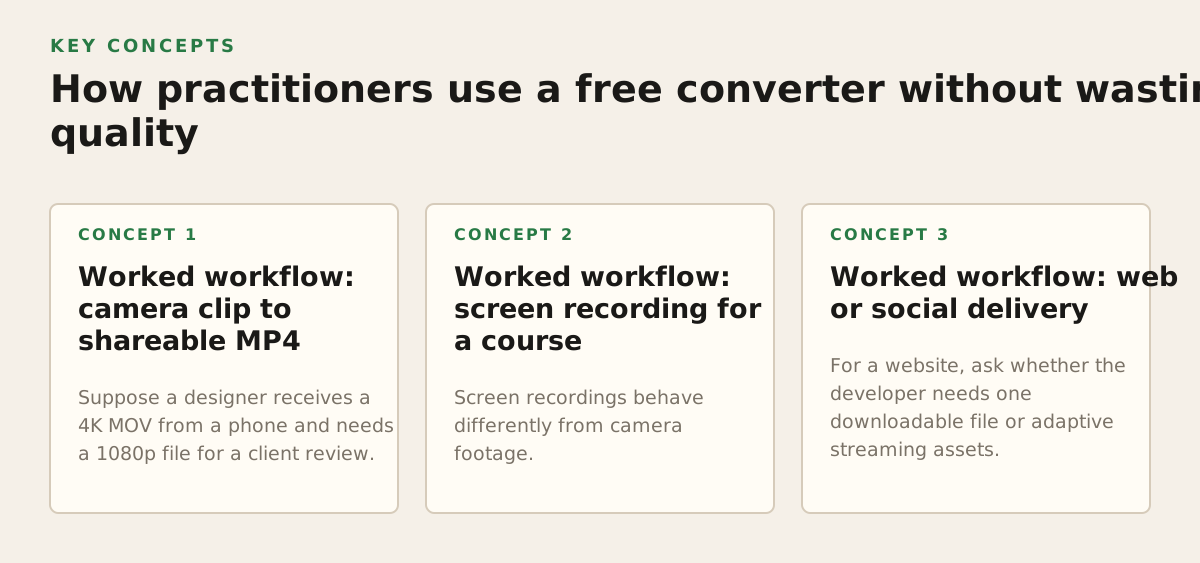
A reliable workflow starts with the job, not the dropdown menu. A social editor, podcaster, teacher, and camera operator may all ask for “MP4,” but their acceptable trade-offs differ.
Worked workflow: camera clip to shareable MP4
Suppose a designer receives a 4K MOV from a phone and needs a 1080p file for a client review. The goal is not archival quality; it is dependable playback and manageable transfer size. Keep the original MOV, choose MP4 only if the client’s player requires it, select 1920×1080 output, preserve the source frame rate unless the destination says otherwise, and avoid excessive compression that makes logos or interface text unreadable.
After conversion, check rotation, duration, speech synchronization, skin tones, and small on-screen details. Send the review copy, not the only copy. If the client later needs an edit, provide the original or a high-quality master rather than asking them to work from the compressed review file.
Worked workflow: screen recording for a course
Screen recordings behave differently from camera footage. A lecture with slides may contain large static areas but also tiny text and cursor movement. Preserve the recording’s aspect ratio, inspect text at normal viewing size, and avoid reducing the frame size until you know the learning platform’s limits. If the source contains separate audio, confirm that the conversion has not replaced clear speech with a low-bitrate track.
Worked workflow: web or social delivery
For a website, ask whether the developer needs one downloadable file or adaptive streaming assets. A basic converter produces a file; it does not automatically create a full streaming package, captions, poster image, analytics setup, or content delivery configuration. For a social platform, read the current upload guidance rather than relying on a generic preset, because requirements and recommendations can change.
- Write down the destination, target dimensions, maximum file size, and required audio.
- Inspect the source: duration, orientation, resolution, frame rate, HDR status, and audio tracks.
- Choose the least destructive conversion that solves the compatibility problem.
- Upload only a copy when the tool uses server processing, and avoid confidential footage unless the service is approved.
- Verify playback on the actual destination device or application before deleting the source.
The best free video converter is therefore not the one with the longest format list. It is the one that matches the destination, makes its processing model understandable, and gives you an output you can verify. For routine, non-sensitive jobs where installing software is inconvenient, OMNIVERT offers browser-based file conversion, with video handled through a separate server-processing path when speed and signup-free access are the priority.
Authored with NotFair SEO