

An online utility is a browser-accessible tool that performs a focused job—such as converting an image, audio track, document, or video—without requiring a traditional desktop installation. For everyday file conversion, the best choice depends on three questions: where processing occurs, whether the destination format meets your use case, and what happens when the file is too large, complex, or sensitive for a browser workflow. OMNIVERT processes images, audio, and documents locally in the browser, while video conversion uses separate server processing for users who prioritize fast, signup-free conversions.
Table of Contents
- What an Online Utility actually does
- Why the processing location matters
- How a browser-based converter works
- Where online conversion breaks down
- How practitioners choose the right utility
- A practical selection rule for 2026
What an Online Utility actually does
The phrase can describe anything from a calculator to a PDF compressor, so it helps to define the category precisely. In this article, an online utility is a focused web application that accepts an input, applies a transformation, and returns a result. A file converter is one particularly useful type: it changes the encoding, container, structure, or presentation of a file so another application or service can use it.
That distinction matters because “convert” can mean several different operations:
- Re-encoding: changing an image from PNG to JPEG or an audio file from WAV to MP3.
- Transcoding: decoding media and encoding it again with different compression settings, dimensions, or codecs.
- Container changes: moving streams into a different wrapper, such as video and audio packaged in an MP4 rather than another container.
- Document transformation: mapping text, layout, fonts, and objects from one document format into another.
A renamed extension is not a real conversion. Changing photo.png to photo.jpg does not create JPEG data; a useful utility must read the original file structure and write a valid destination file. That is why a conversion may alter more than the filename: compression, color information, metadata, fonts, page breaks, or media streams can all be affected.
Conversion is a compatibility decision
Start with the application that will open the result, not with the format that sounds most advanced. A designer sending a logo to a print vendor may need a lossless image or a particular color workflow. A student submitting an assignment may need a document that preserves page breaks. A podcaster may need an editing-friendly master rather than a small streaming file.
The right output is therefore the one that satisfies the next step with the least damaging trade-off. A smaller file is not automatically better if it introduces visible artifacts, removes needed metadata, or becomes incompatible with the recipient’s software.
Why the processing location matters
An online utility can process a file in two broad ways. Client-side processing happens inside your browser, so the file can remain on your device while the page performs the work. Server-side processing uploads the file to a remote system, where the conversion runs before the result is sent back. Both approaches are legitimate; they solve different constraints.
Local browser processing
Local conversion is attractive for private documents, unreleased photos, interview recordings, and routine office files. The browser can expose a user-selected file to a web application through the File API; MDN documents that this API lets web applications access files selected by the user through an input or drag-and-drop interaction: MDN File API documentation.
That does not mean every website automatically keeps files local. A page can still upload data if its design requires a server. Look for a clear processing statement, and treat browser-based delivery and local processing as separate claims. For a privacy-conscious workflow, verify:
- Whether the file is sent to a server at all.
- Whether conversion occurs locally, remotely, or through a hybrid process.
- Whether the service asks for an account, email address, or unnecessary personal information.
- Whether the downloaded output is created locally and whether temporary remote copies are described.
OMNIVERT’s supplied product model separates these cases: images, audio, and documents are processed locally in the browser, while video conversion uses separate server processing. That distinction gives a practical rule: use the local path for sensitive everyday files when the requested format is supported, and use the video path when server-side media processing is the necessary trade-off.
Server-side processing
Servers are useful when a file needs substantial memory, broad codec support, long-running processing, or fast hardware. Video is a common example because decoding and re-encoding can involve large files, multiple streams, subtitles, frame rates, and audio tracks. A server can also make a conversion less dependent on the user’s laptop or phone.
The cost is a larger trust boundary. Once a file leaves the device, privacy depends on the provider’s handling, retention, transport security, access controls, and deletion practices. Do not infer those policies from a polished interface. Read the service’s current privacy and file-handling language, especially before uploading client material, medical records, financial documents, or unreleased media.
There is also a practical network cost. A large source file must travel to the service, and the finished file must travel back. On an unreliable connection, a local conversion can be preferable even if the device takes longer. Conversely, a powerful server may be the better option for a long video on an older laptop.
How a browser-based converter works
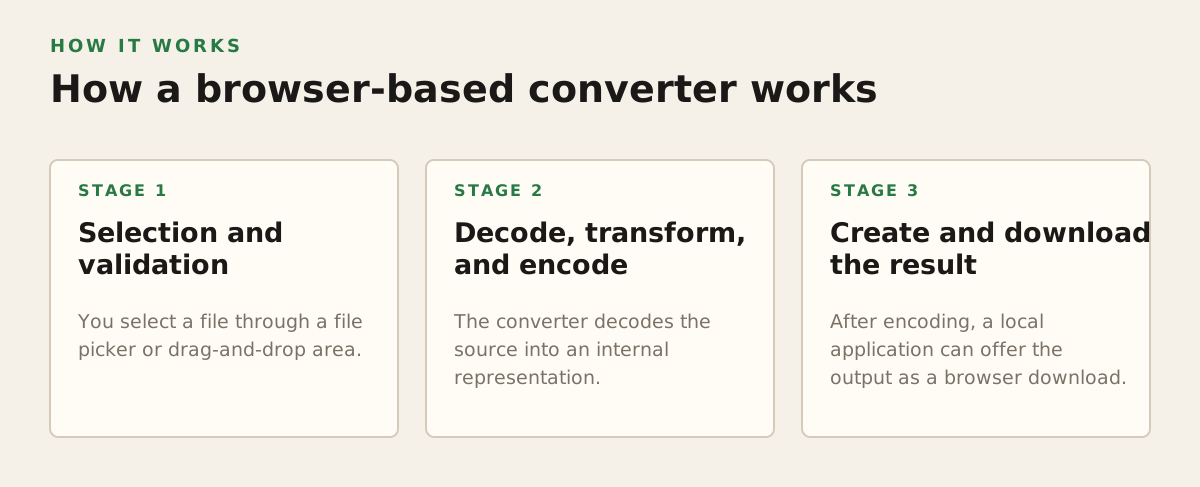
A useful way to evaluate an online utility is to follow the file through its pipeline. The interface may look like one button, but the result depends on several distinct stages.
1. Selection and validation
You select a file through a file picker or drag-and-drop area. The application can inspect the filename, size, and type information, but a trustworthy workflow should not rely on the extension alone. The actual file structure must be readable before conversion begins.
For local tools, the browser holds the selected file as a file object. For server tools, the application typically packages the file into an upload request. Those paths feel identical to the user, which is why the processing-location explanation is more important than the word “online.”
2. Decode, transform, and encode
The converter decodes the source into an internal representation. For an image, that may be pixels; for audio, samples; for video, frames and audio streams; for a document, structured text and layout objects. It then applies the requested transformation and encodes the result into the destination format.
Media conversion is especially sensitive to settings. A change of format may also change:
- Dimensions: a video or image may be resized.
- Bit rate: audio or video quality and file size can move together.
- Color handling: profiles, transparency, and channel depth may not survive.
- Metadata: camera details, timestamps, location tags, or embedded artwork may be removed.
- Streams: subtitles, chapters, alternate audio, or embedded attachments may be omitted.
For a technical reference point, FFmpeg’s official documentation describes its command-line tool as reading inputs from files or other sources, processing them, and writing output files, with options controlling formats and streams: FFmpeg documentation. A browser converter may use different implementation details, but the underlying decision remains the same: a successful output is not necessarily an unchanged output.
3. Create and download the result
After encoding, a local application can offer the output as a browser download. Web applications commonly represent generated data with an object URL; MDN documents URL.createObjectURL() as a way to create a URL representing a file or blob, which can then be used by page elements or download flows: MDN createObjectURL documentation.
That generated link is temporary browser plumbing, not proof that the file was uploaded. Likewise, a download button is not proof that processing was local. Judge the privacy model from the service’s stated architecture and policy, not from the button label.
Heavy local work can also affect the interface. Web Workers allow JavaScript to run in a background thread rather than blocking the page’s main thread; MDN explains the distinction and the restrictions that apply to worker code here: MDN Web Workers guide. A well-designed utility may use that approach to keep controls responsive, but the browser still has finite memory and device resources.
Where online conversion breaks down
Online utilities are convenient, not universal. The most common failures are predictable, so you can avoid wasting time by checking the boundaries before uploading an important file.
Format support is narrower than it looks
“Supports video” might mean one common container and a small set of codecs, not every camera, screen recorder, or editing export. “Document conversion” may preserve plain text but mishandle tracked changes, embedded fonts, spreadsheets, macros, or complex page geometry. Image tools may accept a raw photo file but fail to preserve camera-specific metadata or a wide-gamut workflow.
Before converting, identify the properties that must survive:
- For images: transparency, pixel dimensions, color profile, layers, and metadata.
- For audio: sample rate, channel layout, bit depth, loudness, and embedded artwork.
- For documents: fonts, page breaks, comments, hyperlinks, tables, and accessibility structure.
- For video: resolution, frame rate, audio tracks, subtitles, chapters, and rotation metadata.
If one of those properties is essential, run a non-sensitive sample first and inspect the output in the application that will receive it. This is a decision procedure, not a promise that any particular converter preserves every property.
Size, memory, and connection limits
A local browser conversion can fail because the device runs out of memory, the tab is suspended, or the browser cannot decode a particular file. A server conversion can fail because of upload limits, timeouts, queue capacity, or a format the server does not support. The visible error—“conversion failed”—often hides a very different cause.
Use these troubleshooting steps:
- Try a short or smaller sample to distinguish a format problem from a scale problem.
- Remove unnecessary streams, such as extra audio tracks or attachments, if the workflow permits.
- Keep the original file untouched and work from a copy.
- Try a current browser and a stable connection, especially for large server uploads.
- Move to desktop software or a specialist workflow when the file is irreplaceable or technically complex.
These are practical starting policies, not universal limits. A phone, office laptop, and modern desktop can behave very differently with the same source file.
Privacy and security are separate questions
Local processing reduces the need to transmit the file, but it does not make every browser tool automatically safe. The page itself can still contain unwanted scripts, and an untrusted file can be dangerous when opened in vulnerable software. Server processing introduces additional concerns around upload handling and retention.
OWASP’s file upload guidance recommends controls such as allowlisting extensions, validating file types, limiting file size, storing uploads safely, and scanning where appropriate: OWASP File Upload Cheat Sheet. Those recommendations are aimed at developers operating upload systems, but they explain why a service’s file-handling design matters to users too.
For sensitive work, avoid uploading a file merely to test a button. Use a sanitized sample, remove hidden metadata when appropriate, and retain the original locally. If a service requires an account for a one-off conversion, consider whether that added data trail is justified.
How practitioners choose the right utility
The fastest workflow is not always the one with the fewest clicks. It is the one that produces a usable result without creating a second problem for the designer, editor, student, or office worker.
Designers and photographers
Keep a high-quality original as the source of truth. Create delivery copies for the specific destination: a website, client proof, print vendor, or social platform. Check dimensions and color behavior after conversion, and be cautious with raw photo files because camera metadata and editing instructions may not map cleanly into a general-purpose output.
A sensible sequence is:
- Preserve the original raw or lossless file.
- Convert a copy into the recipient’s requested format.
- Inspect transparency, sharp edges, gradients, and color appearance.
- Check whether location or camera metadata should be retained or removed.
Podcasters and audio editors
Use an uncompressed or lossless working file when editing is still underway, then create a compressed distribution copy only at the delivery stage. Repeated lossy conversions can compound quality loss. Confirm whether the target platform wants a particular container, sample rate, channel layout, or loudness treatment instead of assuming that “MP3” or “WAV” alone specifies the job.
For a quick handoff, an online utility is convenient when the source is ordinary, the destination is known, and the file is not confidential. For a multi-track session, stems, or a master recording, a dedicated audio application gives more control over the settings that matter.
Students and office workers
Document conversion should be judged by the final page, not merely by whether the file opens. Compare headings, tables, footnotes, page breaks, hyperlinks, and embedded images. If the assignment or office process has a prescribed format, use that requirement as the acceptance test.
For a routine document with no sensitive content, local browser processing is often an efficient no-install option. For confidential HR, legal, financial, or medical material, prefer a clearly local workflow or approved organizational software. A conversion that saves five minutes is not worthwhile if it exposes information that should never have left the device.
Creators converting video
Decide whether you need a delivery file or an editing file. Delivery usually prioritizes compatibility and manageable size; editing prioritizes predictable quality and stream control. Before starting, record the source’s resolution, frame rate, audio tracks, and subtitle requirements so you can verify the result rather than trusting a completion message.
Server processing can be the practical choice for a large video when speed and hardware independence matter. It is a poor fit for material that cannot be uploaded under your organization’s policy. In that case, use local software or a local browser workflow that explicitly supports the required format.
A practical selection rule for 2026
Choose an online utility when the task is bounded, the destination format is clear, and the file’s privacy requirements match the tool’s processing model. For OMNIVERT specifically, that means local browser conversion is the natural starting point for supported image, audio, and document jobs, while the separate server-based video path is appropriate when fast video processing outweighs the need for all processing to remain on the device.
Use this short decision checklist before committing an important file:
- Need no installation? A browser utility can remove setup and reduce friction for one-off jobs.
- Need local privacy? Confirm that the selected tool processes that file type in the browser.
- Need exact preservation? Test a representative copy and inspect the properties that matter.
- Need heavy video processing? Account for upload, retention, and server-processing implications.
- Need repeatable professional control? Use dedicated desktop or command-line software when presets, logs, or advanced stream handling are essential.
The best tool is therefore not simply the one with the longest format list. It is the one whose processing location, output behavior, and privacy trade-off fit the job. For no-install conversion of everyday images, audio, and documents, or for a clearly understood server-assisted video conversion, OMNIVERT is a practical place to start.
Authored with NotFair SEO